


PDFNest - View & Create
4.03.00 Reviews
App Specs
- Version
- 1.0.5
- Updated On
- License
- Free
- Downloads
- 10,000+
- Developer
- DIG Netz
- Categories
- Productivity
- Platform
- Android
Screenshots
 Analysis by AppCompare
I approached PDFNest as a practical productivity tool rather than as a full document-management suite. Its purpose is straightforward: help me view and create PDF files from an Android device. That sounds simple, but PDF work often happens at inconvenient moments, such as when I need to check a form before sending it, turn a short note into a shareable document, or open an attachment without moving to a computer. In those situations, a focused app can be more useful than a large office package.
My first impression is that PDFNest - View & Create aims to keep the experience approachable. It is free, available for Everyone, and developed by DIG Netz. The app sits in the productivity category, where ease of use matters more than an impressive list of advanced tools. I would recommend trying it if your PDF needs are occasional and practical, but I would not treat it automatically as a replacement for a mature document workflow.
There is also a reasonable amount of early user interest behind it. The app has an average rating of 4.0 from around 23 ratings and has passed 10K+ installs. Those figures suggest that people are testing it in real situations, while also reminding me that this is still a relatively young product rather than a deeply established standard.
What PDFNest feels like in everyday PDF work
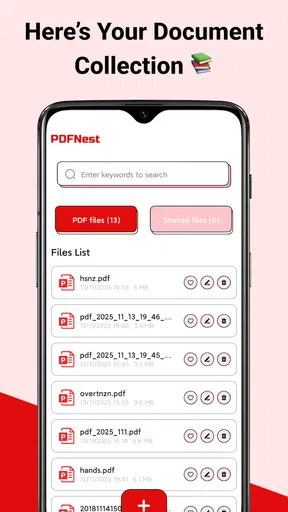
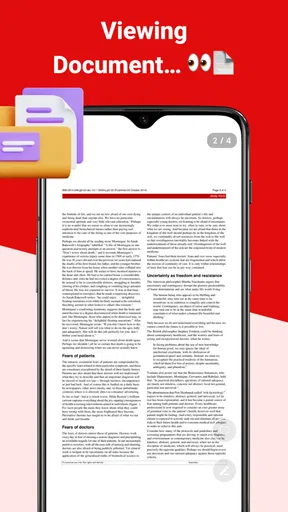
The most useful way to judge this app is to imagine a normal day. I might receive a PDF by email or messaging, open it on my phone, check whether the pages are complete, and then create another PDF from text or notes. With PDFNest, those two jobs belong in the same place instead of forcing me to keep one viewer and another creation tool installed.
That concentration is valuable for students, freelancers, small-business owners, and anyone who occasionally handles forms or simple records. A student could create a clean PDF from prepared text before submitting it. A freelancer could make a basic quotation or project note while away from a laptop. A family member could open a school document or travel form without learning a large office application first.
I would be more cautious if your work depends on complex layouts, detailed editing, document signing, optical character recognition, or collaboration. The central promise here is viewing and creating PDFs, not replacing every specialist tool around them. That distinction matters because a simple PDF creator may be pleasant for short documents but frustrating when a file needs precise formatting or several rounds of revision.
One practical habit makes the app more useful: prepare the content before starting the PDF creation process. I find it easier to decide on the wording, order, and essential details first, then use the app for the final document. This reduces the chance of treating a phone-sized editor like a desktop publishing program and keeps the result focused.
Worth Reading Before You Choose

EA SPORTS FC Mobile 26 Is a Bigger Football Game, but It Takes Time

Flipboard Shows What News Apps Must Do Beyond the Feed

Switching to Android Auto Means Rethinking Your Driving Routine

Google Calendar Makes a Crowded Week Easier to Manage

Ludo King Makes the Most of the Minutes Between Plans

Baby Panda World Brings Quick Play to Modern Phones, but Its Game Library Feels Busy
Trust starts with a modest scope
For a document app, trust is not only about whether a file opens. I also want to know what I am being asked to do, where a file is going, and whether I can make sensible choices before creating or sharing something. PDFNest presents itself with a narrow, understandable purpose, which is a better starting point than an app that tries to do everything without explaining the workflow.
The developer is DIG Netz, and the current release is version 1.0.5. Since the app was released on Nov 25, 2025, I view it as an early-stage product and judge it accordingly. A newer utility can be perfectly useful, but I prefer to test it with ordinary documents before making it part of a critical work process.
The free price also lowers the barrier to testing. I can install it for occasional use without committing money first. At the same time, free does not automatically mean risk-free or suitable for confidential material. I still keep my own standards: I avoid placing highly sensitive documents into any new app until I understand its visible behavior and the choices it gives me.
The safest way to build confidence is to begin with a harmless sample PDF. I would open a public document or a blank test file, try the creation flow, inspect the result, and only then decide whether the app fits more personal work. That approach gives me useful information without exposing private forms, identity documents, or financial records unnecessarily.
Controls I can actually evaluate
When reviewing a PDF tool, I pay attention to visible controls rather than making assumptions about invisible systems. I want clear actions for opening a document, creating a new one, and choosing what happens to the finished file. I also look for moments where the app lets me pause before a document is saved or shared.
PDFNest’s value is strongest when those basic actions remain easy to understand. A viewer should let me concentrate on the page rather than hunt through unrelated menus. A creator should help me move from content to a usable PDF without turning a short task into a technical project. If I need to make a simple file quickly, a short path is a genuine advantage.
I also recommend checking the destination every time a document is saved. On a phone, it is easy to create several versions with similar names and then forget which one is final. My preferred workflow is to give the file a descriptive name immediately, keep drafts separate from completed documents, and open the finished PDF once before sending it. This is not glamorous, but it prevents avoidable mistakes.
Another useful check is to reopen the generated file as a reader would see it. Creation screens can make a document look finished even when the final PDF has awkward spacing, missing text, or an unintended page break. Viewing the exported result gives me a more reliable answer than trusting the editing stage alone.
For people asking whether an account is needed, I would approach the app through what is visibly presented during use rather than assuming a requirement. If a task can be completed without handing over personal profile details, that is preferable for occasional PDF work. If the app presents an account prompt, I would read the purpose carefully and decide whether the added convenience is worth it for my situation.
Where privacy deserves extra attention
PDFs often contain more personal information than users realize. A document may include an address in a footer, a reference number in a filename, comments left in the text, or a scanned page that exposes an entire form. The fact that an app is designed for PDFs does not remove the need to inspect the file before opening, creating, or sharing it.
I would be especially careful with identity documents, medical paperwork, employment records, contracts, and anything containing payment details. For those files, I first ask whether I truly need to process them on a phone. If the answer is yes, I use a copy rather than the only original, remove unnecessary pages where possible, and check the recipient before sharing.
A concrete example is a rental application. I might need to create a PDF containing several pages, but combining everything without checking could expose information that the recipient never requested. My safer workflow is to prepare only the required pages, create the document, reopen it, and read the first and last pages carefully. I also inspect the filename because a careless name can reveal private details even before the document is opened.
Another data-sensitive moment occurs when a file arrives from someone else. I do not assume that an attachment is harmless simply because it is a PDF. I check the sender, avoid opening unexpected documents, and keep a clean copy of the file before making changes. PDFNest can be part of that workflow, but it cannot replace basic judgment about where a document came from.
I also avoid promising myself that a PDF is private merely because it is stored on a phone. Device backups, file-sharing choices, and other applications can affect the wider handling of a document. My recommendation is to use the app for information you are comfortable managing on that device, and to keep particularly sensitive material within a workflow whose storage and access controls you already understand.
Keeping control of the finished document
User agency matters most at the end of the process. Creating a PDF is only half the job; I still need to know which version is complete, where it is located, and who receives it. PDFNest is more useful when I treat those as deliberate choices instead of tapping the first share action that appears.
I like to use a simple naming pattern: subject, date, and status. For example, a draft and a final copy should never look identical in a file list. This small habit is particularly helpful on a phone, where filenames may be the main clue available before opening a document. It also makes it easier to remove old drafts later.
Before sharing, I read the document from beginning to end when the subject is important. I check names, page order, blank pages, and whether the final page contains anything unintended. If the document was created from copied text, I look for broken symbols or formatting that did not survive the conversion. These checks are more valuable than rushing to send a file simply because the creation screen says it is ready.
For a recurring task, I would create a repeatable routine rather than relying on memory. Keep source text in one place, create the PDF with a consistent filename, reopen it for inspection, and share only after confirming the recipient. This makes the app easier to use because the surrounding process carries the complexity that a small mobile utility may not be designed to handle.
There is also a useful trade-off between convenience and control. A single app for viewing and creating documents reduces switching, but a specialist editor may offer more precise formatting. I would choose PDFNest for speed and simplicity, then move to a desktop or dedicated office tool when the document needs careful page design. That is not a failure; it is a sensible division of labor.
Who should install it, and who should look elsewhere
I see PDFNest as a good fit for someone who wants a lightweight way to read PDFs and produce straightforward documents on Android. It makes sense for occasional users who dislike installing a large office suite for one small task. It can also suit people who want a quick second option for checking a file while traveling, studying, or working away from a computer.
The minimum operating system is Android 7.0, which keeps the app accessible to many older devices. That is helpful for users who are not carrying a recent phone and do not want their PDF utility to demand modern hardware. I would still judge the experience on the specific device, especially when opening long or image-heavy documents.
I would skip it as my main tool if I routinely edit contracts, prepare polished reports, annotate technical drawings, fill complex government forms, or need a controlled team workflow. In those cases, I would look for an established PDF suite or office platform with the exact editing, review, and sharing tools required. A focused viewer-and-creator app should not be forced into a role it was not built to fill.
I would also choose another option if my work requires dependable cross-device synchronization or a clearly managed document library. Those needs involve more than producing a PDF. They require predictable organization, access management, and recovery habits, so I would select a service based on those requirements rather than on the convenience of a free mobile install.
My practical verdict after testing the idea behind it
PDFNest - View & Create is appealing because it addresses a common annoyance without making the purpose difficult to understand. I can see myself using it for quick document checks, short PDF creation tasks, and situations where opening a larger office suite would be excessive. Its free availability and Everyone age rating make experimentation easy, while the 4.0 average suggests a generally positive early reception rather than universal approval.
My caution is proportional to the app’s position as a newer productivity tool. I would not make it the only place I keep important documents, and I would not assume that a simple interface covers specialist PDF needs. I would test it with non-sensitive files, inspect every generated document, and keep a separate backup of anything that matters.
The strongest reason to try it is convenience: viewing and creating are brought together in one modest Android app. The strongest reason to remain selective is that PDF work quickly becomes more demanding when privacy, formatting, or document history matters. In my view, PDFNest is worth installing for everyday, low-complexity PDF tasks, provided I stay deliberate about file contents, filenames, storage, and sharing.
That makes my recommendation fairly clear. If you want a free tool for occasional PDF handling and prefer a simple starting point, I would give PDFNest a careful trial. If your documents are confidential or your workflow is professional and complex, I would compare it with a more established specialist before depending on it. Use it as a convenient helper, not as an automatic substitute for careful document management.
Pros
- Opens PDFs quickly
- even when switching between several documents.
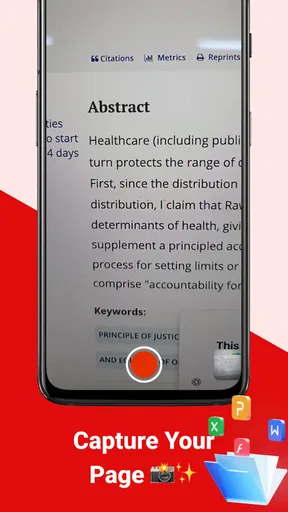
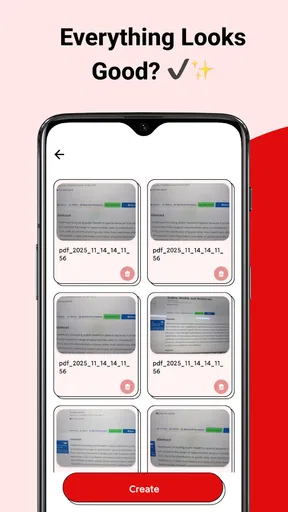
- Creation tools make it easy to turn images or scans into a PDF.
- Useful page controls allow reordering
- rotating
- and removing pages.
- Clean interface is approachable for casual users and first-time PDF editors.
- Supports convenient sharing of finished files through installed apps.
Cons
- Advanced editing features may be limited compared with full desktop PDF suites.
- Large image-based PDFs can take longer to process and use more storage.
- Some tools or export options may require an in-app purchase.
- Text recognition and extraction may be unreliable on blurry or complex scans.
- Privacy-conscious users should review permissions before importing sensitive documents.
FAQs for PDFNest - View & Create
What is PDFNest - View & Create used for?
PDFNest - View & Create is designed for working with PDF documents on a mobile device. It can be used to open and read files, organize documents, and create or export PDFs from supported content. The app is useful for students, professionals, and anyone who regularly needs to access paperwork without relying on a desktop computer.
Can I create PDF files with PDFNest - View & Create?
Yes, creating PDFs is one of the app’s main purposes. Depending on the source and available tools in your installed version, you may be able to turn text, images, or other supported documents into a PDF and save the result on your device. Before downloading, check the current feature list because creation and export options may vary between platforms.
Does PDFNest - View & Create work offline?
PDFNest - View & Create can generally be used to view PDF files already stored on your device without a constant internet connection. Offline availability may differ for features that require cloud storage, online sharing, advertisements, account services, or external file sources. It is best to download or import documents in advance if you plan to use the app while traveling.
Is PDFNest - View & Create free to download and use?
The app may be available as a free download, but some functions can depend on the version, platform, or monetization model. Advanced creation tools, document conversion, cloud features, or an ad-free experience may require in-app purchases or a subscription. Review the store listing carefully before installing, especially if you need professional PDF editing capabilities.
Is PDFNest - View & Create safe for private documents?
As with any PDF utility, you should consider the permissions and privacy practices before opening confidential files. Documents handled only in local storage are generally less exposed than files uploaded to an online service, but sharing and cloud-related features may involve third-party processing. Avoid importing sensitive information until you have reviewed the app’s privacy policy and permissions.


